EN
EN UA
UA



 Login
Login 


Creation and setup of the floor plan
 07.10.2026
The floor plan allows you to visually position tables and objects in the point of sale for convenient order processing.
Step 1. Creating a new room
1. Go to Directories → Points of Sale → Points of Sale.
2. Next to the required point of sale, click the “Three vertical dots” (Actions) icon and select Floor plans.
3. In the opened window, click the Create icon.
4. Enter the room name and click Confirm.
5. If needed, the created room can be modified or deleted using the Edit and Delete icons.
2. Next to the required point of sale, click the “Three vertical dots” (Actions) icon and select Floor plans.
3. In the opened window, click the Create icon.
4. Enter the room name and click Confirm.
5. If needed, the created room can be modified or deleted using the Edit and Delete icons.
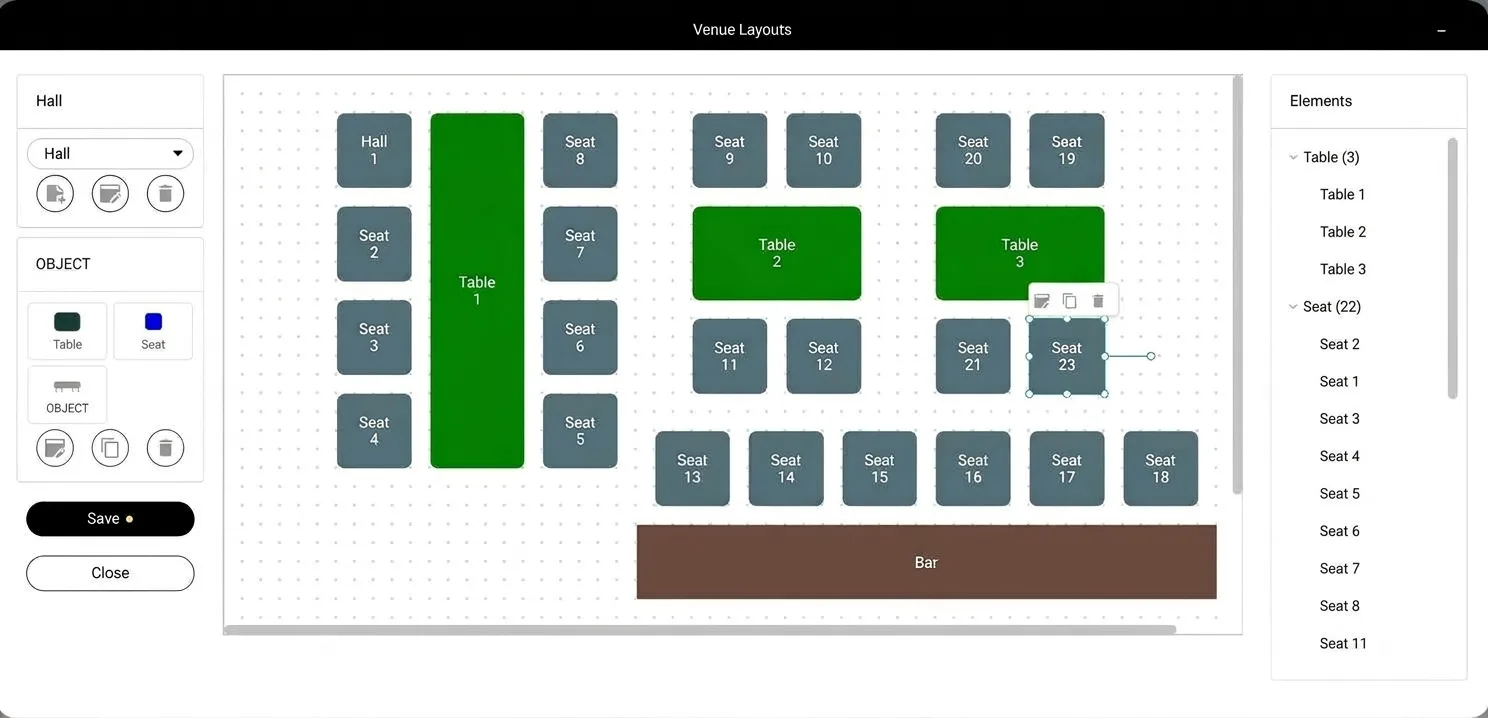
Step 2. Adding and arranging objects
1. Click on the item you want to add (Table, Seat, or Object).
2. In the object creation window, fill in the parameters:
– Name
– Dimensions (width and height)
– Object shape (triangle, circle, or rectangle)
3. Click Confirm — the object will appear on the floor plan.
4. Select the object to:
– Move it around the room
– Resize it
– Edit its name
– Delete the object
5. After arranging all elements, click the Save button.
2. In the object creation window, fill in the parameters:
– Name
– Dimensions (width and height)
– Object shape (triangle, circle, or rectangle)
3. Click Confirm — the object will appear on the floor plan.
4. Select the object to:
– Move it around the room
– Resize it
– Edit its name
– Delete the object
5. After arranging all elements, click the Save button.