EN
EN UA
UA



 Login
Login 



Connecting Banking Services
 06.01.2025
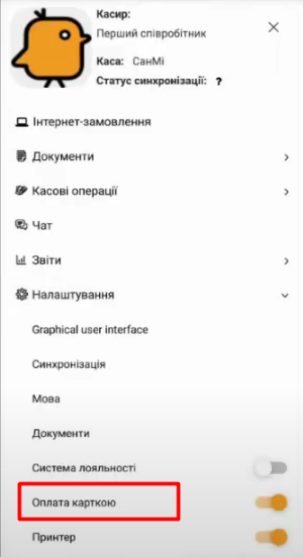
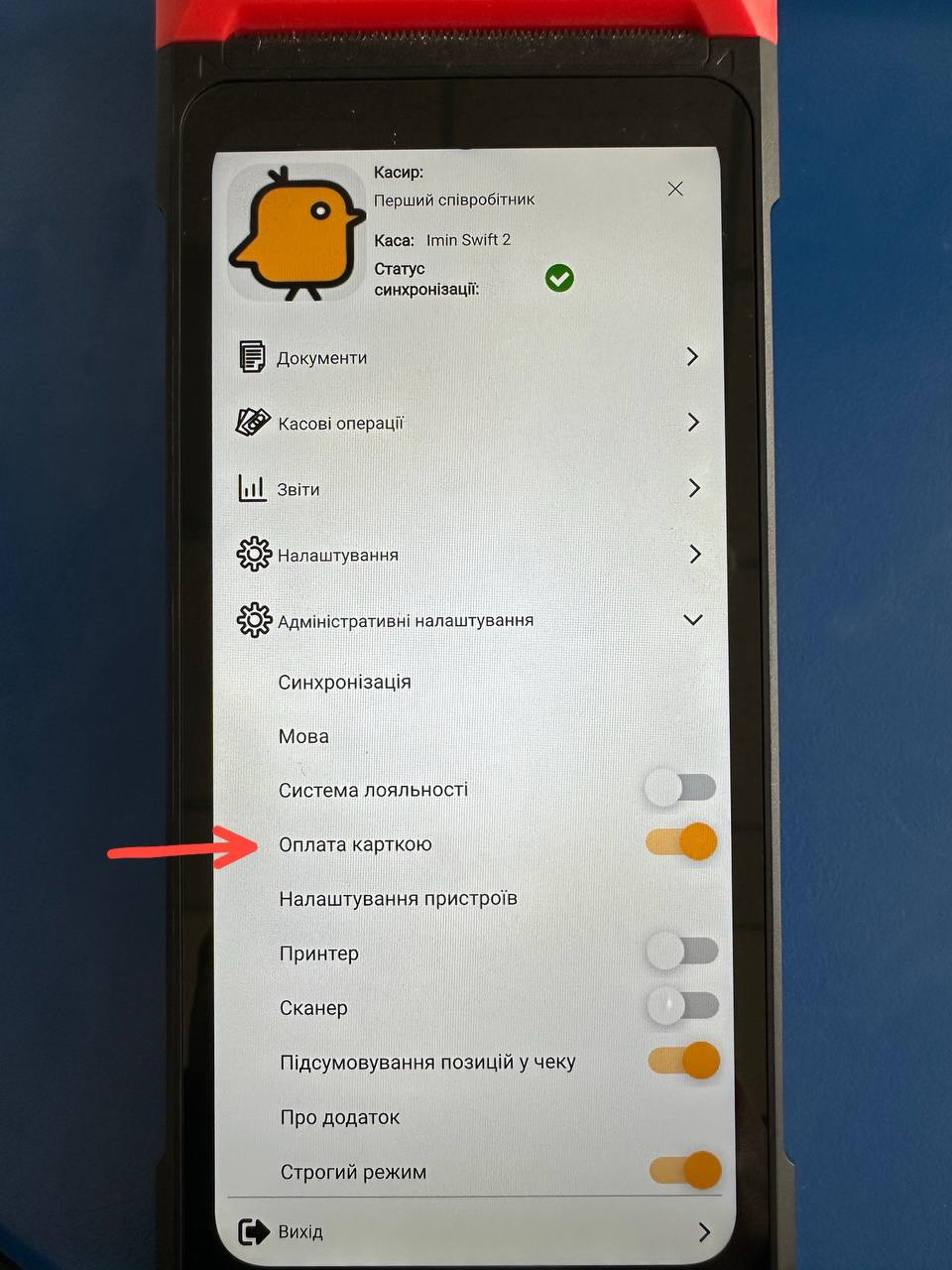
- To connect banking services and terminals, go to the “Settings” menu and select “Card Payment”.
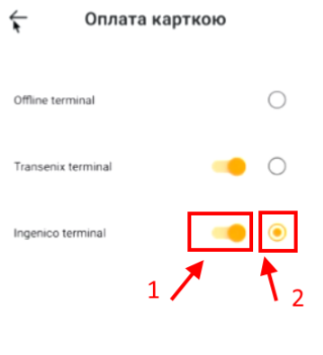
- The opened window displays a list of available connections and their settings. You can connect one or more card payment options. Next to each option, there is a toggle for enabling the connection and setting the default payment method. When closing a receipt via card payment, the payment will be processed through the terminal selected as default.
- 2.1 To enable the selected terminal, turn on toggle №1.
- 2.2 To set the selected terminal as default, enable parameter №2.
- To change the terminal directly during payment:
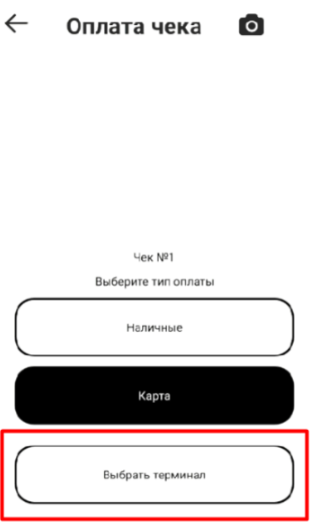
- 3.1 When closing a receipt, in the payment method selection window, choose the terminal by clicking the “Select Terminal” button.
-
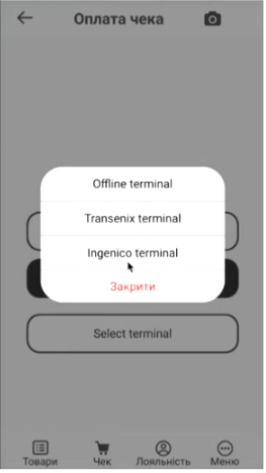
- 3.2 In the opened menu, select the required terminal.
-
- 3.3 The payment will be processed through the selected terminal.
Connecting A-Bank Acquiring
To connect A-Bank, first:
- Download the A-Bank app.
- Register in it.
- In settings (step 2), enable the toggle and select it as the default payment.
Please note that the A-Bank app must be running while the PayKit app is in use. If this condition is not met, payment via A-Bank will not be processed and another payment method will need to be selected. When closing a receipt, follow the on-screen instructions.
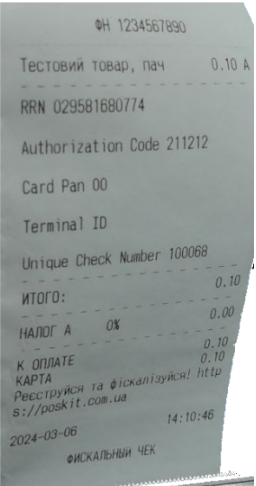
- Please note that after closing the receipt, the printed receipt will display the required merchant information.
Connecting Monobank Acquiring
- Register on the Monobank Acquiring website and obtain your Merchant ID and Terminal ID.
- Install the TapXphone app from the Play Market.
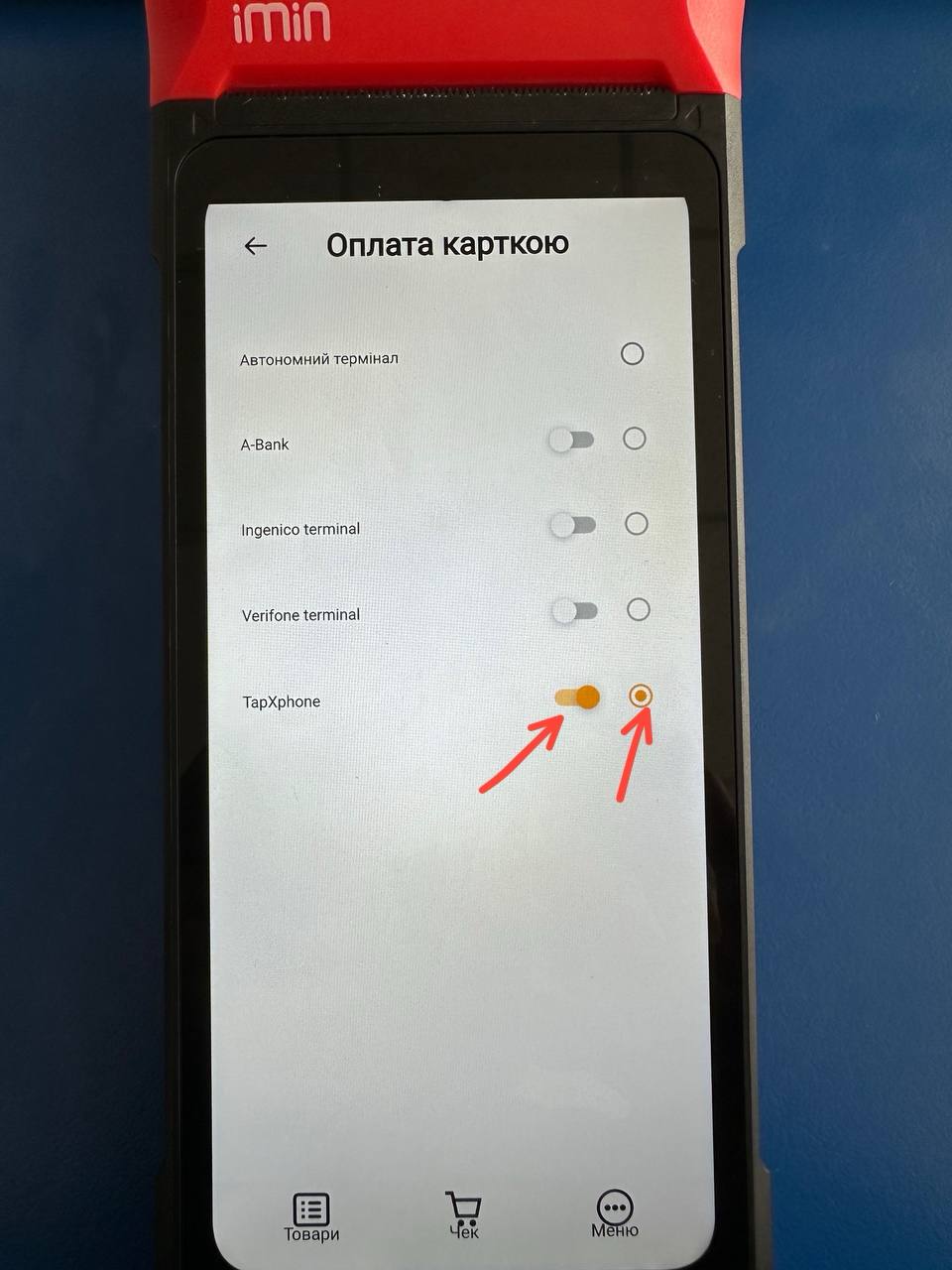
- In PayKit, go to Administrative Settings → Card Payment and tap on TapXphone.
- Enter the Merchant ID (phone number provided during registration) and Terminal ID (obtained from Monobank). If the page does not contain fields for entering the Merchant ID and Terminal ID, please contact technical support.
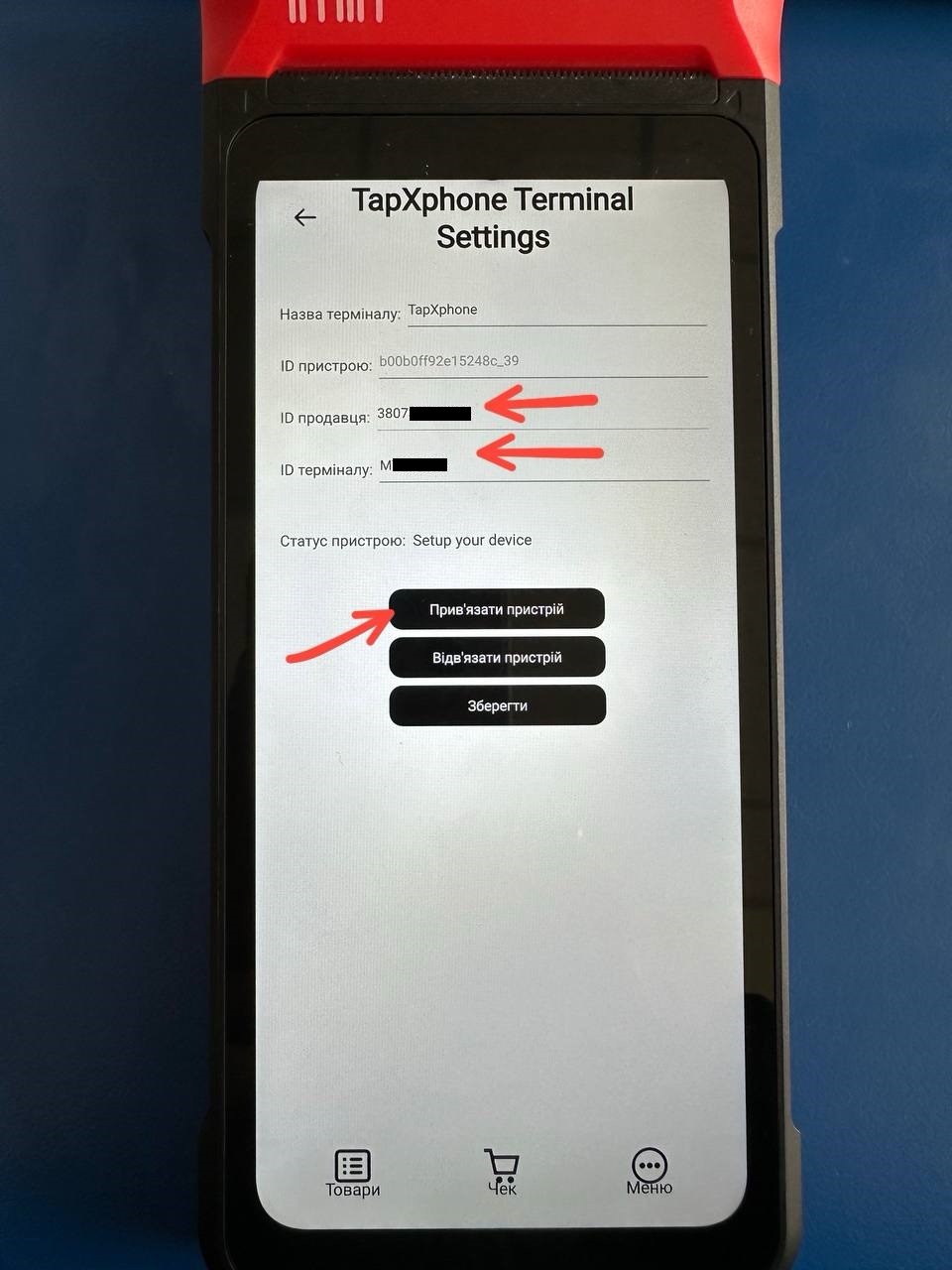
- Click the “Bind Device” button, after which the message “The device successfully configurated and can be used for payment” will appear.
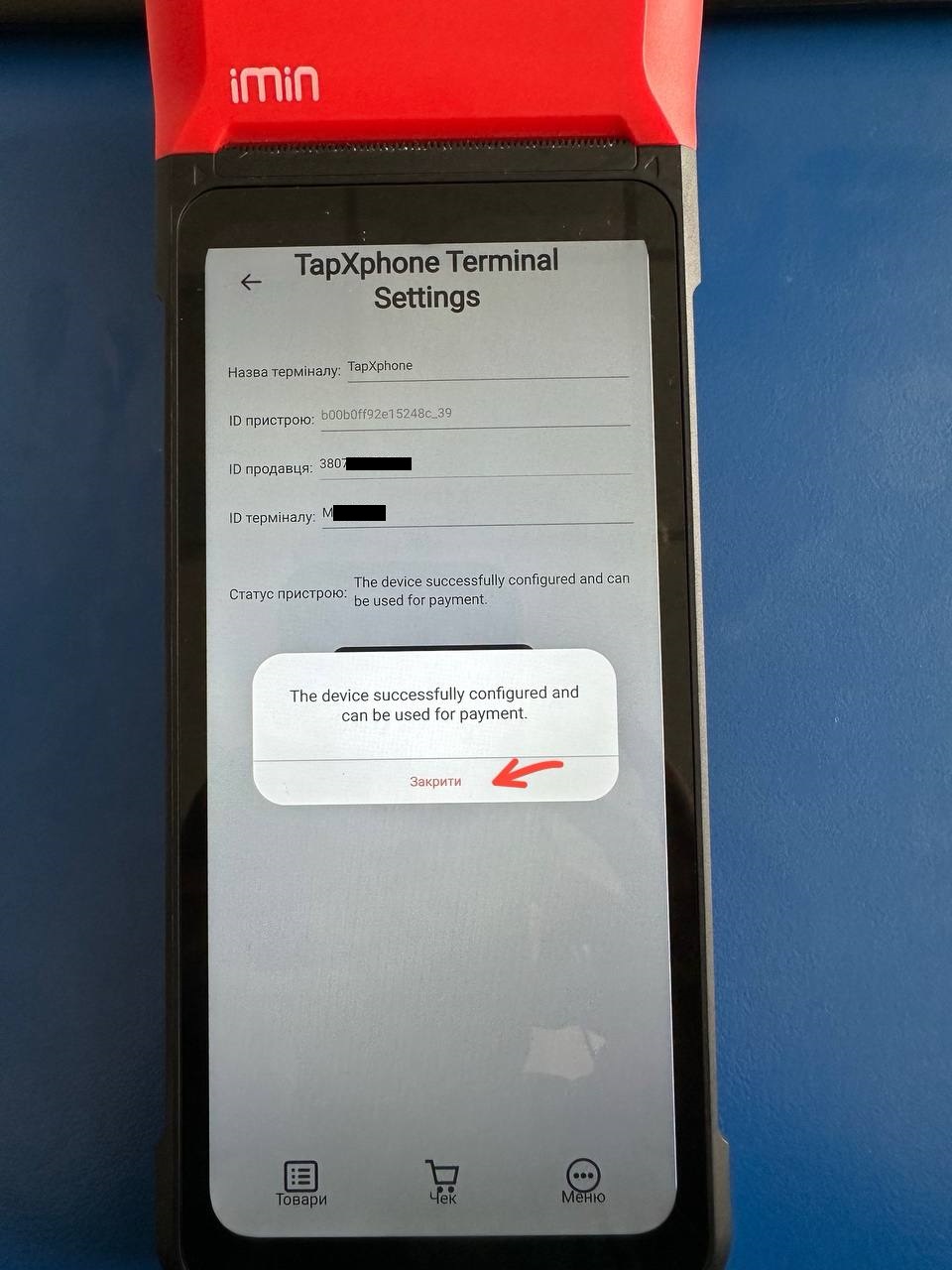
- Click the back arrow in the top left corner, then enable the toggle and checkbox next to TapXphone.