EN
EN UA
UA



 Login
Login 



Suppliers and Buyers
 10.12.2024
1. Suppliers
Suppliers are created in References – Counterparties – Suppliers. The program allows both creating suppliers and making a conditional attachment of goods to suppliers, and further editing the entered values. Assigning goods to suppliers has been made for the convenience of cashiers when creating different invoices at sales points, in his cash register, the cashier can choose goods from both the general list and from the list of goods by suppliers. To create a group of suppliers, you need to click the Create Group + button in the directory References – Counterparties – Suppliers, then fill in the Parent Group and Name fields and click the Create button.
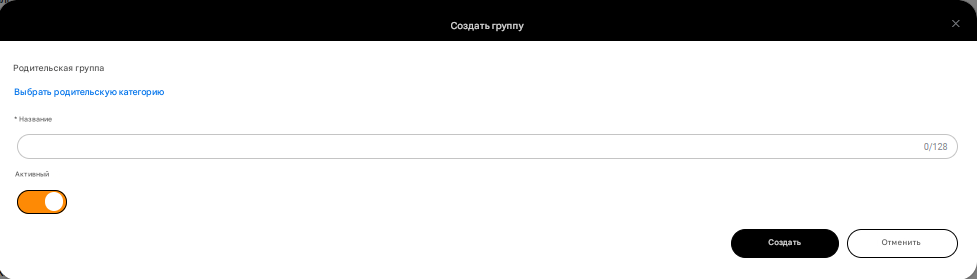
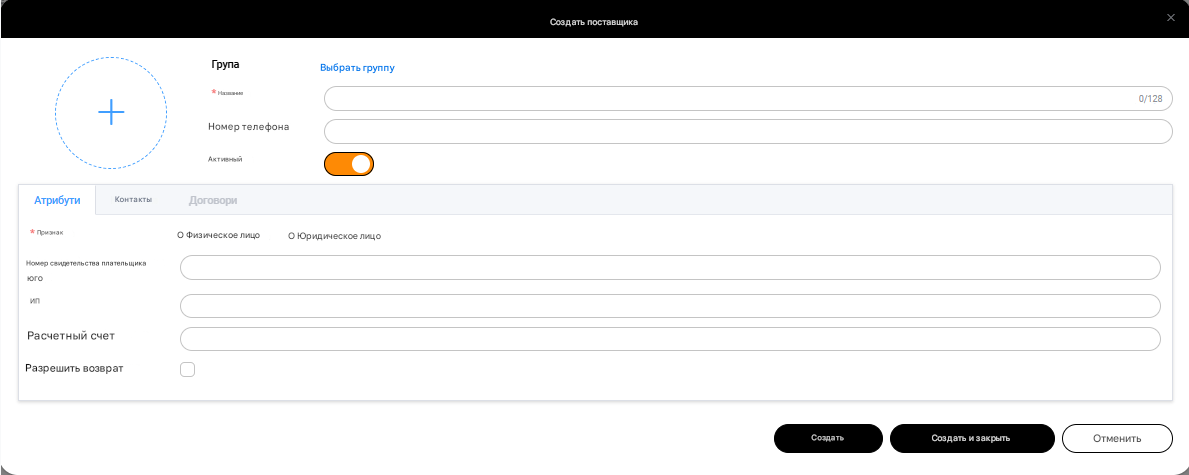
To create a new supplier, you need to click the Add Supplier + button in the References – Counterparties – Suppliers directory and fill in the fields:
-
- Group
- Name
- Phone number
- Active
- Sign (Individual or Legal entity)
- VAT payer’s certificate number
- TIN
- USREOU code (for legal entity)
- Payment account
- Allow returns
- Add photo
After filling in the mandatory fields (marked with an asterisk *), click the Create button.
After creating the Supplier, you can edit the supplier’s data. To do this, in the directory References – Counterparties – Suppliers, you need to select a supplier and opposite it in the Actions column, click on the three dots and select the edit item.
You will have the opportunity to edit such data:
Attributes
-
-
-
- Group
- Name
- Phone number
- Active
- Sign (Individual or Legal entity)
- VAT payer’s certificate number
- TIN
- USREOU code (for legal entity)
- Payment account
- Allow returns
- Photo
-
-
Contacts
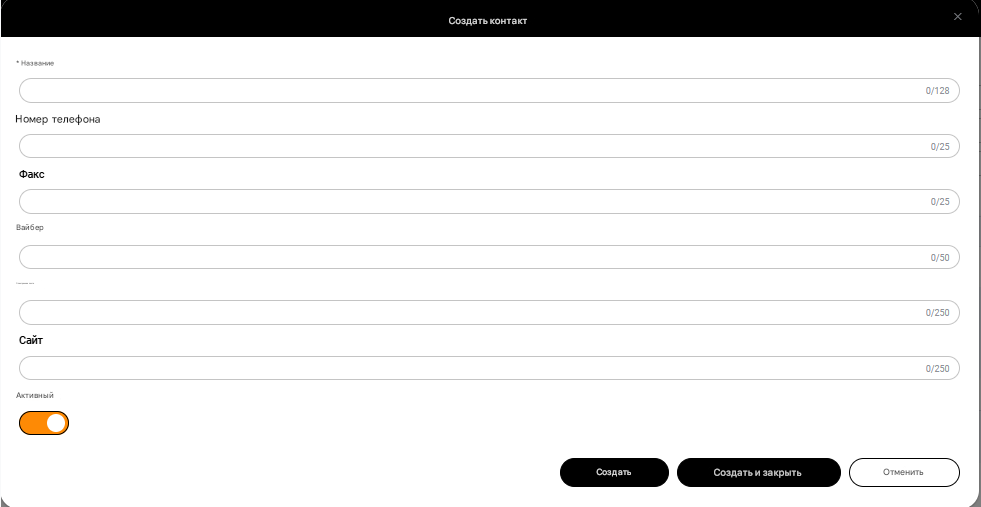
You have the opportunity to add contact information to the supplier’s card. To do this, click the + Create Contact button, fill in the mandatory Name field, add contact information and click the Create and Close button
Contracts
In this section, you can add contracts with the supplier to his card. To do this, you need to click the + Create contract button and fill in the fields:
-
-
-
- Name
- Contract type
- Payment type
- Deferral time
- Main
- Activity
-
-
And click the Create button
After editing the supplier’s card, you need to click the Edit button (if you want to save the data and continue editing the supplier’s card) or click the Save and close button
2. Buyers
The “Buyers” tab is an informative window of the list of buyers who have certain privileges, but in addition, there is the opportunity to edit the price levels of buyers and create new discount cards for any buyer from the list.
To create a group of buyers, you need to click the Create Group + button in the directory References – Counterparties – Buyers, then fill in the fields Parent Group and Name and click the Create button.
To create a buyer’s card, you need to click the Add Buyer + button and fill in the buyer’s card, namely:
-
-
-
- Group *
- Name
- Phone number
- Gender
- Active
- Sign *
- Individual
- Legal entity
- VAT payer’s certificate number
- TIN
- USREOU code (for legal entity)
- Payment account
- Allow returns
- Photo
-
-
Items marked with an asterisk * are mandatory
After filling in the mandatory items, click the Create button (if you want to continue filling out the buyer’s card) or Create and close
After creating a buyer’s card, you can edit the buyer’s data. To do this, in the directory References – Counterparties – Buyers, you need to select a buyer’s card and opposite it in the Actions column, click on the three dots and select the edit item.
You will have the opportunity to edit such data:
Attributes
-
-
-
- Group *
- Name
- Phone number
- Gender
- Active
- Sign *
- Individual
- Legal entity
- VAT payer’s certificate number
- TIN
- USREOU code (for legal entity)
- Payment account
- Allow returns
- Photo
-
-
Important dates
-
-
-
-
- Birthday
-
-
-
Discount cards
In this tab, you can add a discount card. To do this, you need to click the + Create a discount card button and fill in the following fields:
-
-
-
-
- Code (filled in automatically) *
- Barcode *
- Phone number
- Price level
- Card type (Accumulative or Discount) *
-
-
-
Items marked with an asterisk * are mandatory
After filling in the mandatory items, click the Create button (if you want to continue filling out the buyer’s card) or Create and close
Questionnaire
In this tab, you can fill out a buyer’s questionnaire, namely:
-
-
-
-
-
- Name
- Surname
- Patronymic
- Gender
- Marital status
- Having children
- Having a car
- Having pets
- Occupation
- Phone
- Receive notifications on the phone
- Receive mail notifications
-
-
-
-
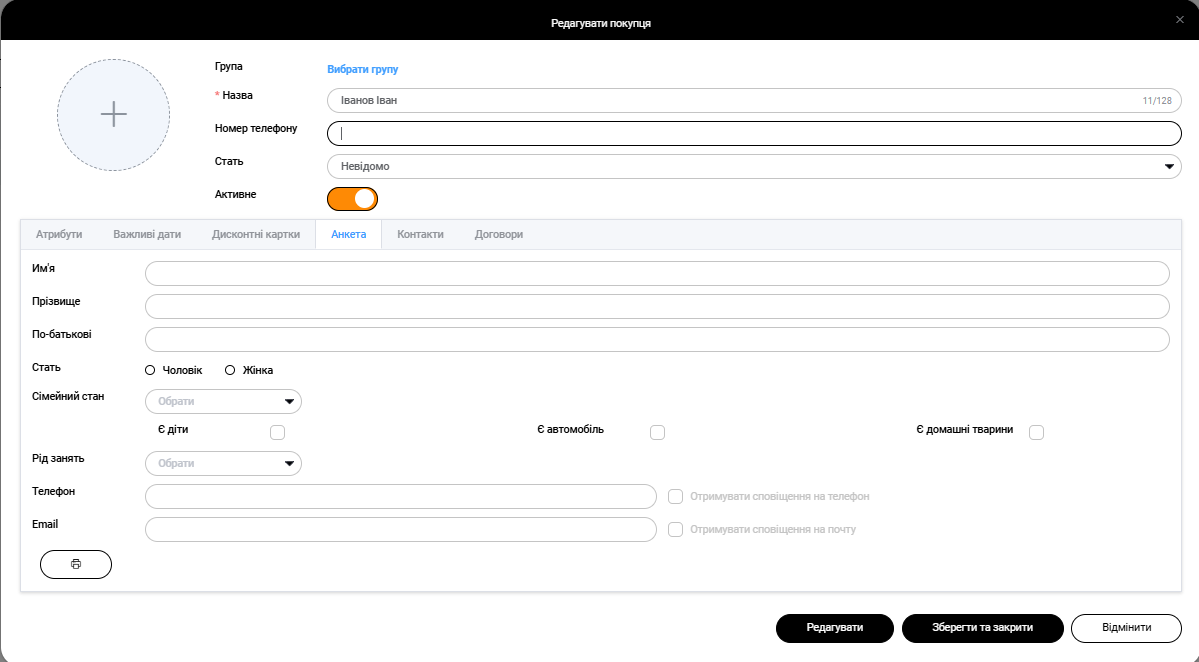
After filling out the questionnaire, click the Edit button (if you want to continue filling out the buyer’s card) or Save and close. There is also the opportunity to print a buyer’s questionnaire. To do this, click on the printer icon.
Contacts
In this tab, you can add contacts to the buyer’s card, namely:
-
-
-
-
-
- Name *
- Phone number
- Fax
- Viber
- Website
-
-
-
-
Items marked with an asterisk * are mandatory
To add contacts, you need to click the + Create Contact button, fill in the mandatory fields and click the Create and Close button and confirm the editing of the buyer’s card.
Contracts
Contracts with the client are added similarly to contracts with the supplier, and are described in the corresponding section